

VerneMQ#
What is VerneMQ?#
VerneMQ is a high-performance, distributed MQTT message broker designed for IoT and messaging applications. Built on Erlang/OTP, it offers excellent scalability, reliability, and fault tolerance. VerneMQ is designed to handle millions of concurrent connections and messages, making it ideal for IoT applications.
Quick Start#
To get started with VerneMQ, follow these steps:
After starting the MAPLE Platform with docker compose up -d, you can access the VerneMQ dashboard by navigating to http://localhost:8889 in your web browser. The dashboard provides an overview of the broker’s status, connections, and metrics.
MQTT Authentication#
The VerneMQ broker is configured with secure authentication through environment variables:
MQTT_USER: Username for MQTT authentication (configured in .env)
MQTT_PASSWORD: Password for MQTT authentication (configured in .env)
Anonymous access: Disabled for security
The broker automatically creates the specified user during initialization, ensuring secure access to the MQTT broker.
Network Configuration#
VerneMQ is configured to operate on both the backend and frontend networks:
Backend Network: Internal communication with other services
Frontend Network: External client access
Ports:
1883: MQTT (standard)
8883: MQTT over TLS/SSL
8080: MQTT over WebSockets
8889: HTTP status/metrics endpoint
Security Features#
The VerneMQ configuration includes several security features:
Anonymous access disabled: Only authenticated users can connect
Environment variable configuration: Credentials are securely managed through Docker secrets
Health checks: Automated monitoring of broker health
Resource limits: Memory and CPU constraints to prevent resource exhaustion
Connecting Clients#
To connect MQTT clients to the VerneMQ broker, use the following connection parameters:
# Basic MQTT connection
mosquitto_pub -h localhost -p 1883 -u "$MQTT_USER" -P "$MQTT_PASSWORD" -t "test/topic" -m "Hello World"

# MQTT over TLS
mosquitto_pub -h localhost -p 8883 -u "$MQTT_USER" -P "$MQTT_PASSWORD" -t "test/topic" -m "Hello World" --capath /etc/ssl/certs

# MQTT over WebSockets
# Use WebSocket client libraries with URL: ws://localhost:8080/mqtt
MQTTX Web - MQTT Testing Client#
MAPLE includes MQTTX Web, a browser-based MQTT client that makes it easy to test and debug your MQTT connections without installing additional software. There is currently one restriction: MQTTX Web only supports WebSocket connections.
Access MQTTX Web: http://localhost:8090
Features:
Connect to VerneMQ using WebSocket
Subscribe to topics and view messages in real-time
Publish test messages to topics
View message history and payloads
Test authentication with MQTT_USER and MQTT_PASSWORD
Debug topic structures and message formats
Quick Start with MQTTX Web:
Open http://localhost:8090 in your browser
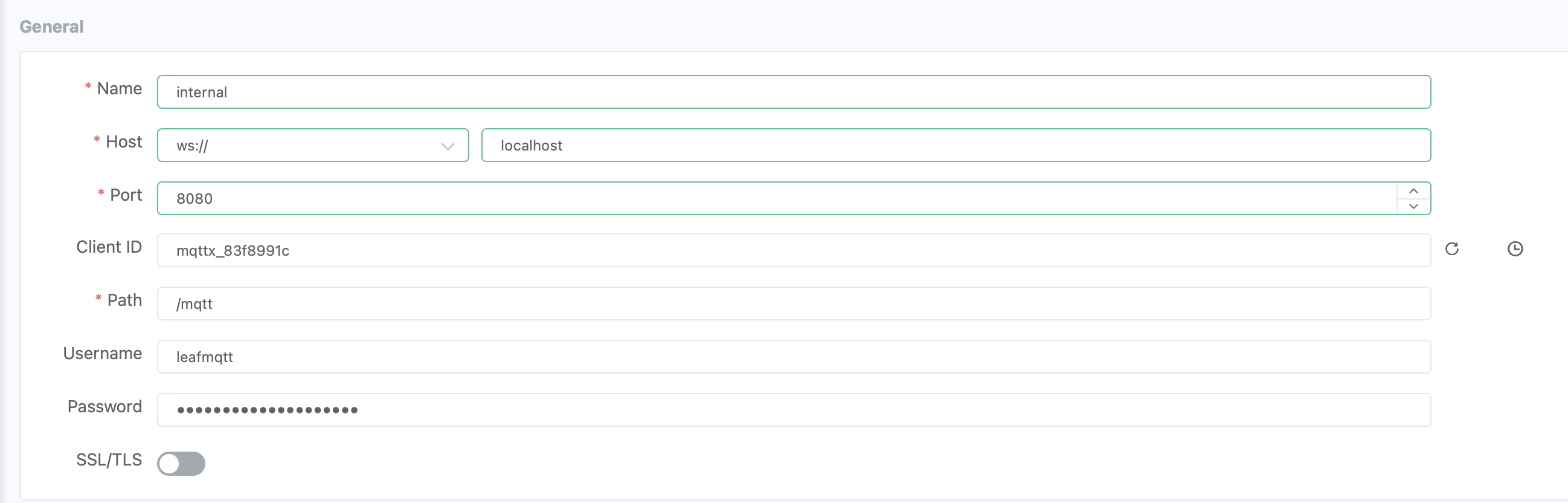
Click “New Connection”
Configure connection:
Name: VerneMQ Local
Host: ws://localhost
Port: Port 8080 for WebSocket
Username: Your MQTT_USER from .env
Password: Your MQTT_PASSWORD from .env
Click “Connect”
Use the interface to subscribe to topics and publish messages
This is especially useful for:
Testing LEAF adapter connections
Debugging message flows
Verifying topic structures
Monitoring real-time data streams
Topic Structure#
LEAF adapters use a structured topic hierarchy for organizing data:
<organisation>/<department>/<adapter_id>/<instance_id>/experiment/<experiment_id>/measurement/<measurement>

# Where <xxx> is a placeholder for the actual value.
This structure is coordinated through the YAML configuration file in combination with the adapter used.
Monitoring and Metrics#
The VerneMQ dashboard at http://localhost:8889 provides:
Connection statistics
Message throughput metrics
Client connection details
System resource usage
Real-time monitoring of MQTT activity
Troubleshooting#
Common issues and solutions:
Connection Refused: Check if VerneMQ is running with
docker compose ps vernemqAuthentication Failed: Verify MQTT_USER and MQTT_PASSWORD in .env file
No Messages: Check topic structure and client subscriptions
High Memory Usage: Monitor connection count and message rates
For detailed logs, use:
docker compose logs -f vernemq