Introduction#
The LEAF Portal is a web-based management interface for the MAPLE backend. It provides a central place to manage organisations, departments, users, access grants, sensor data, alarms, and API tokens.
The portal runs on port 8081 and is included in the MAPLE stack as the leaf-portal service.
Features#
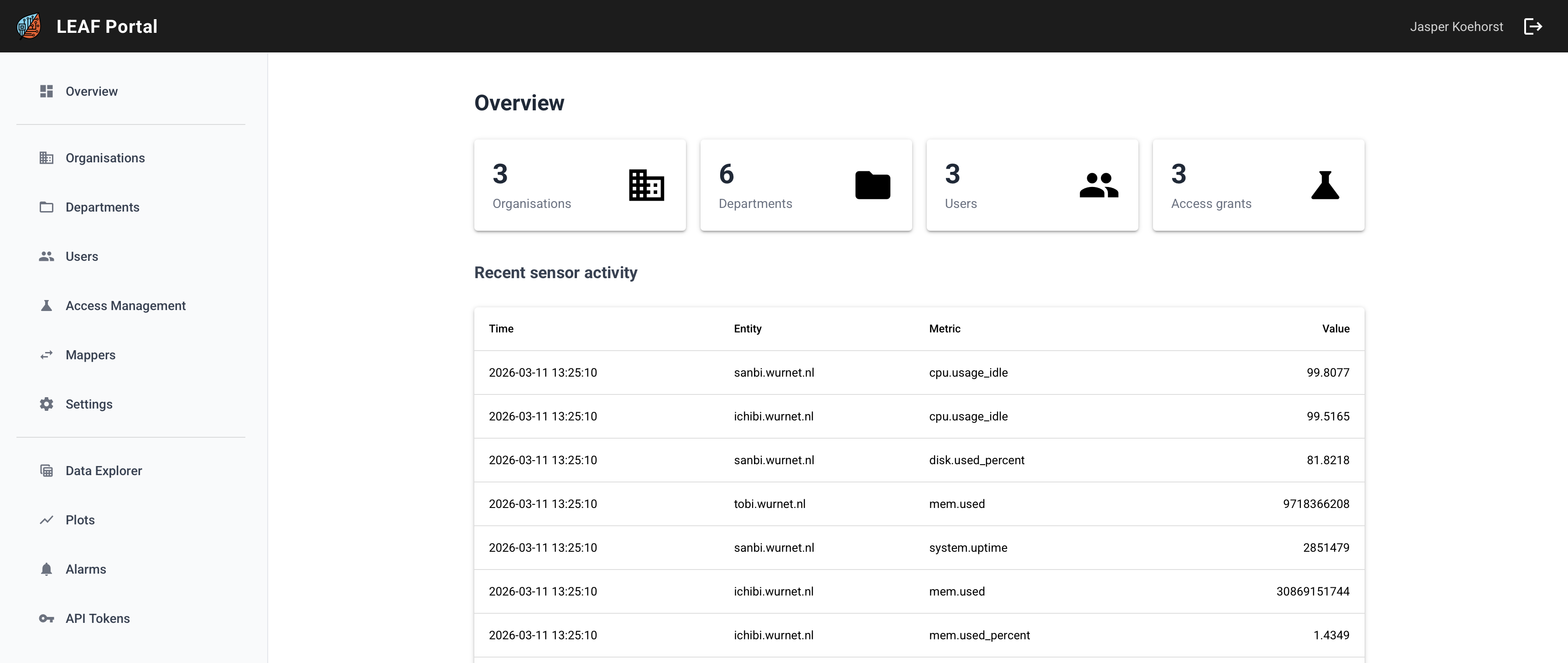
Dashboard — live overview of organisations, departments, users, access grants, and recent sensor activity
Admin — manage organisations, departments, users, and data access grants
Data explorer — query and inspect sensor data interactively
Plots — time-series visualisation of sensor metrics
Alarms — threshold and silence (no-data) alert rules with email notifications
API tokens — generate tokens for programmatic REST API access
First-time Setup#
On first deployment the portal has no database connection or admin account. Navigate to the portal URL and you will be redirected to the /setup page automatically.
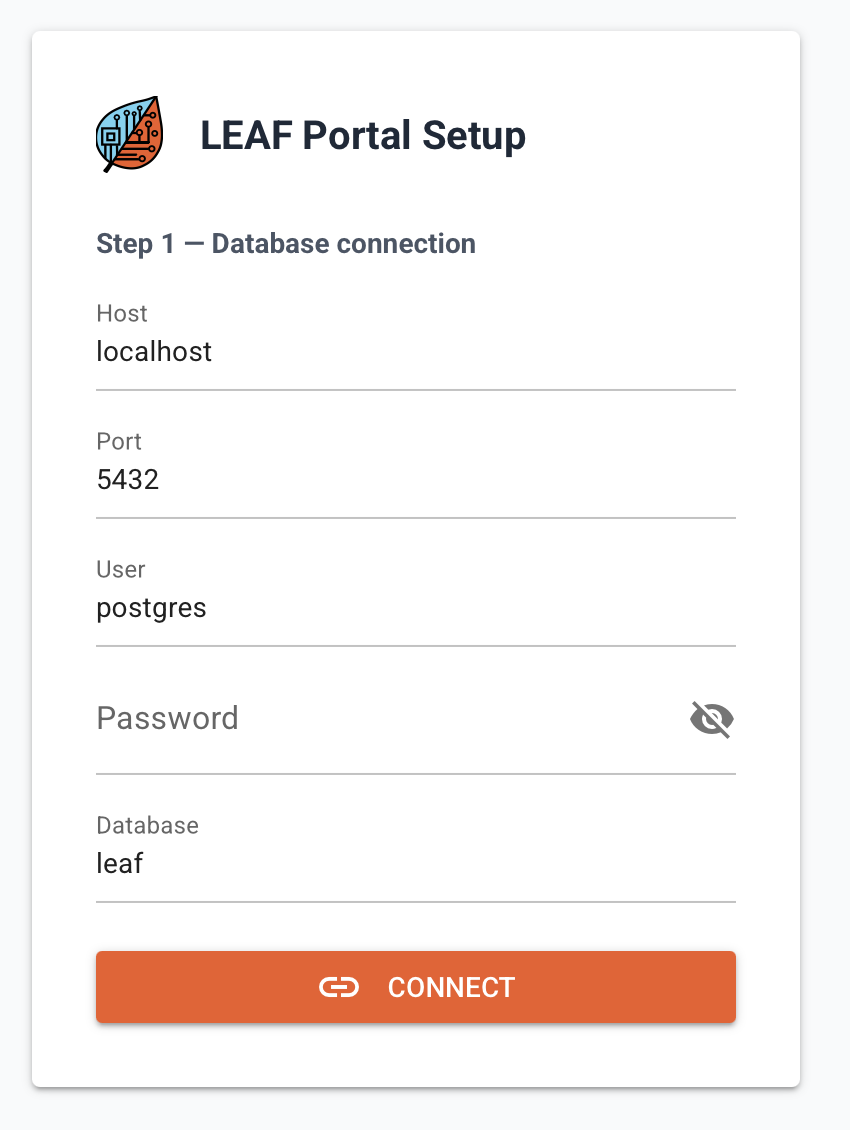
1. Connect to the database#
Enter the TimescaleDB connection details:
Field |
Value |
|---|---|
Host |
|
Port |
|
User |
|
Password |
From your |
Database |
|
Click Connect & apply schema. The portal will create all required tables and functions.
2. Create the first superadmin#
After the database is connected, fill in the superadmin name, email, and password and click Create account. This account has full access to all administration pages.
Only one superadmin can be created through the setup page. Additional admins can be promoted in the Users admin page afterwards.
Accessing the Portal#
The portal is available at:
Docker (MAPLE stack):
http://your-hostname:8081Direct:
http://localhost:8081
Log in with your email and password. After login you are taken to the dashboard.
Navigation#
The sidebar provides access to all sections:
Overview (
/dashboard) — system summary and recent sensor dataAdmin — organisation and user management (superadmin only)
Data — explorer and plots
Alarms (
/alarms) — alarm rulesAPI Tokens (
/tokens) — personal API tokens